
Configuring Email Clients
Below on this page we've created step by step walkthroughs for setting up all of the most used email software today. Follow these steps for a hassle free configuration, and if you do have trouble, remember - we're here to help. Just check in to let us knnow what's going on and we're there.

Always
Step 1
01
Use webmail to test your login info
www.yourdomain.url/webmail
02
Use cPanel to update if needed
www.yourdomain.url/cpanel
Why do this?
By testing your access using webmail, you know before starting out that you have the correct login and password.

Top 3 issues
watch for these while
setting up or troubleshooting
Client Settings: Instructions with Screenshots
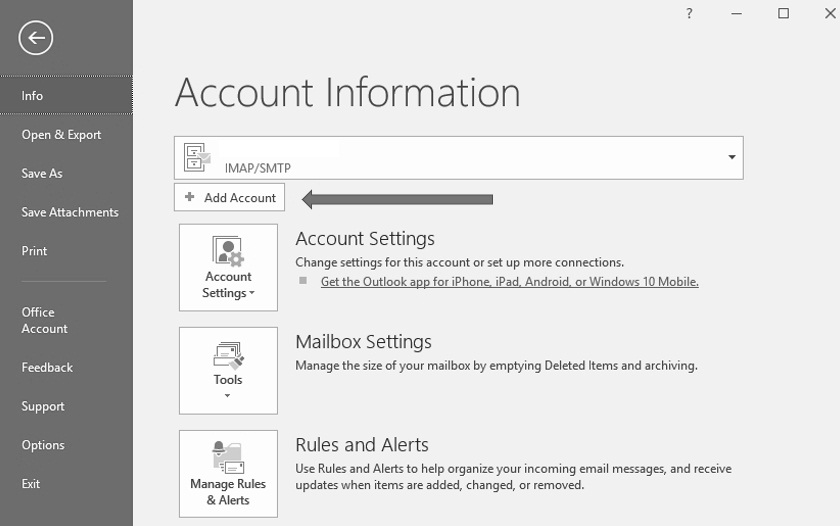
Step 2.
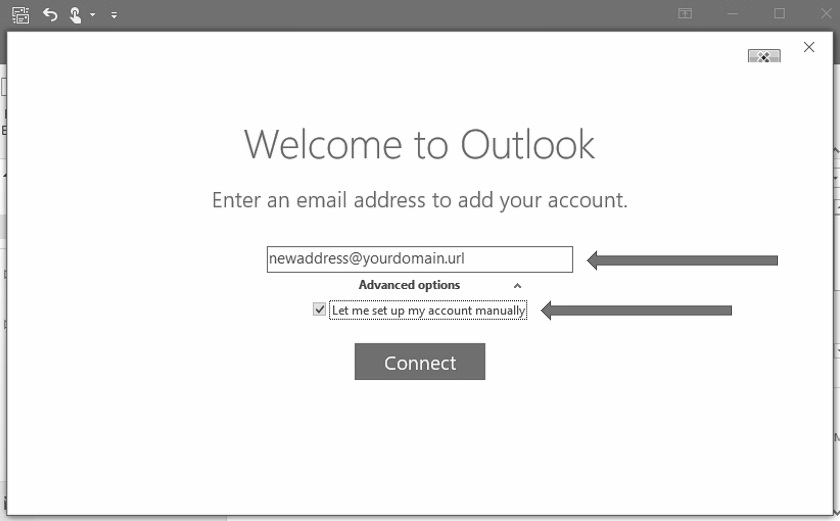
Step 3.
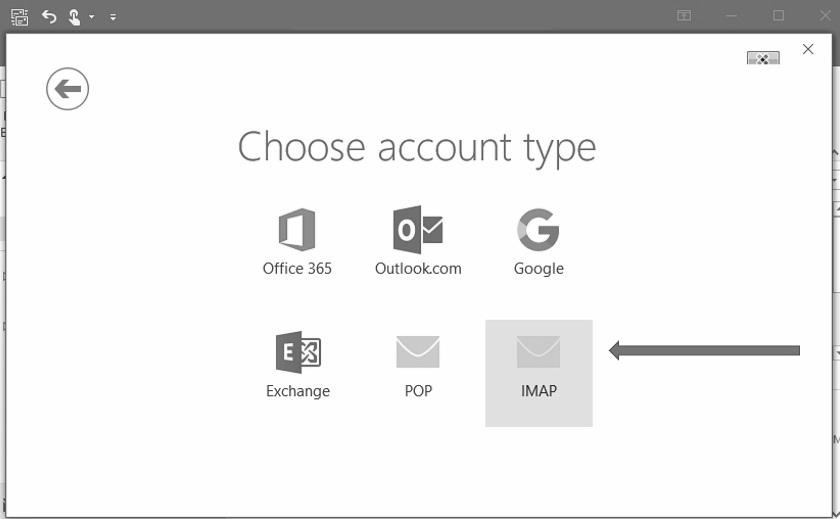
Step 4.
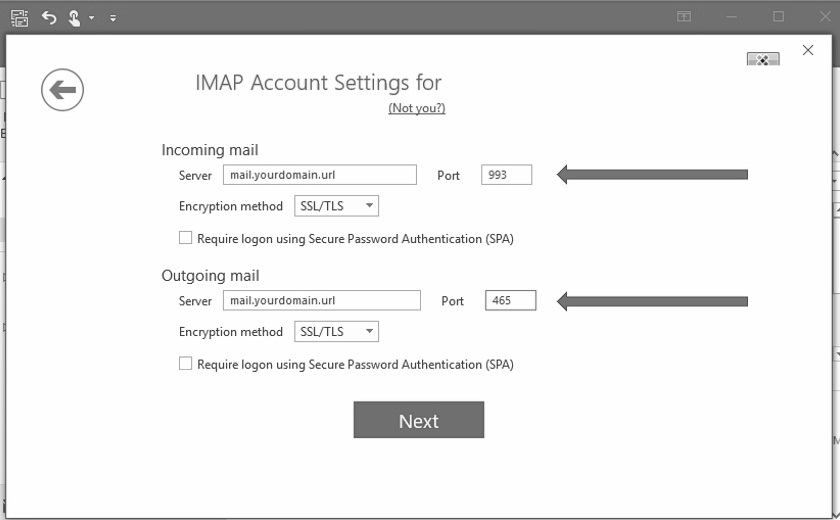
Step 5.
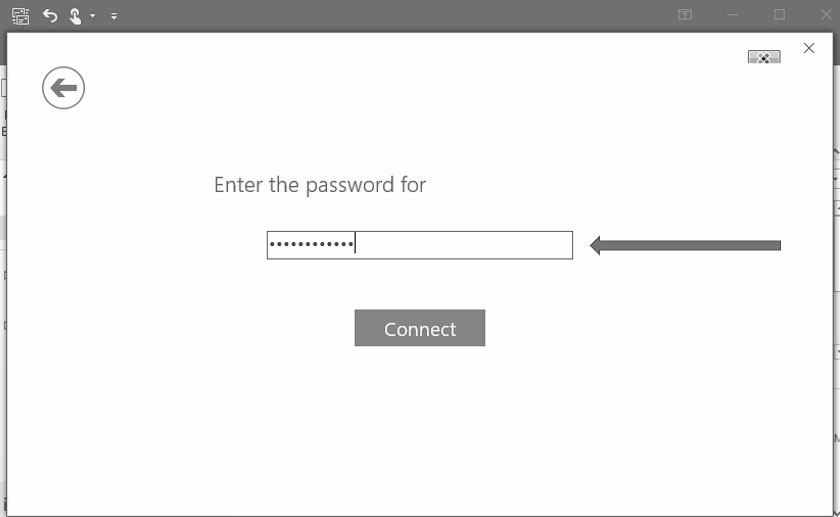
Step 6.
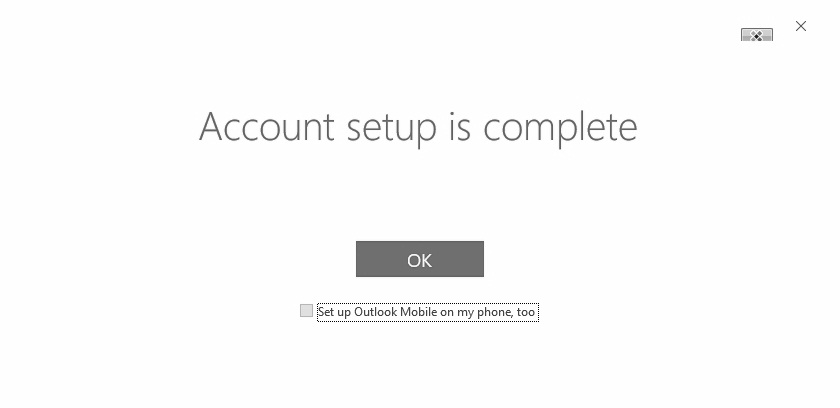
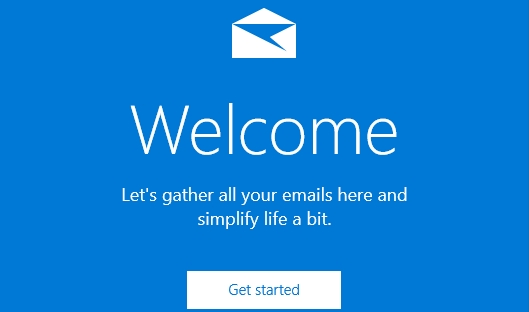
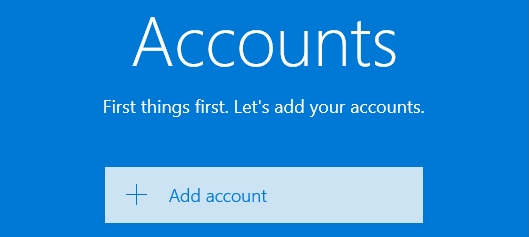
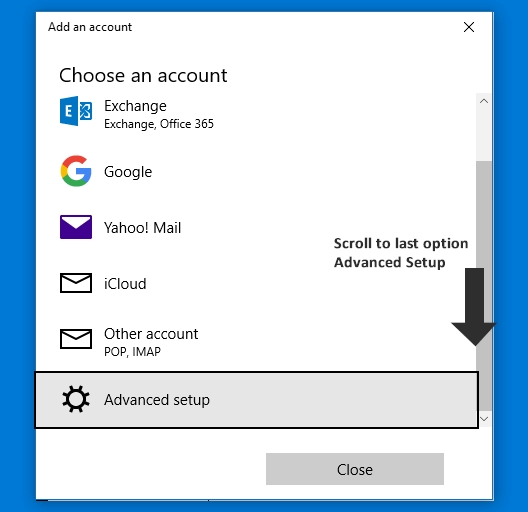
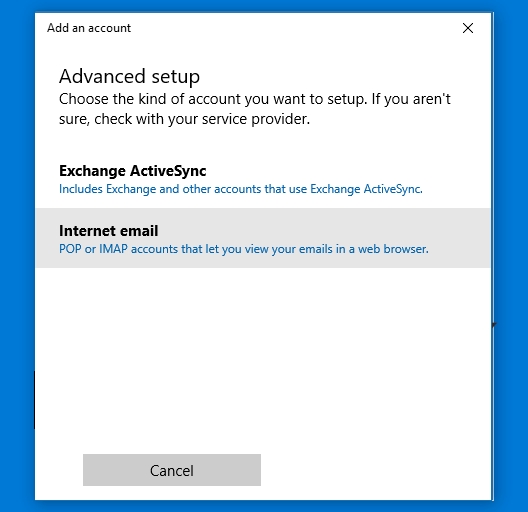
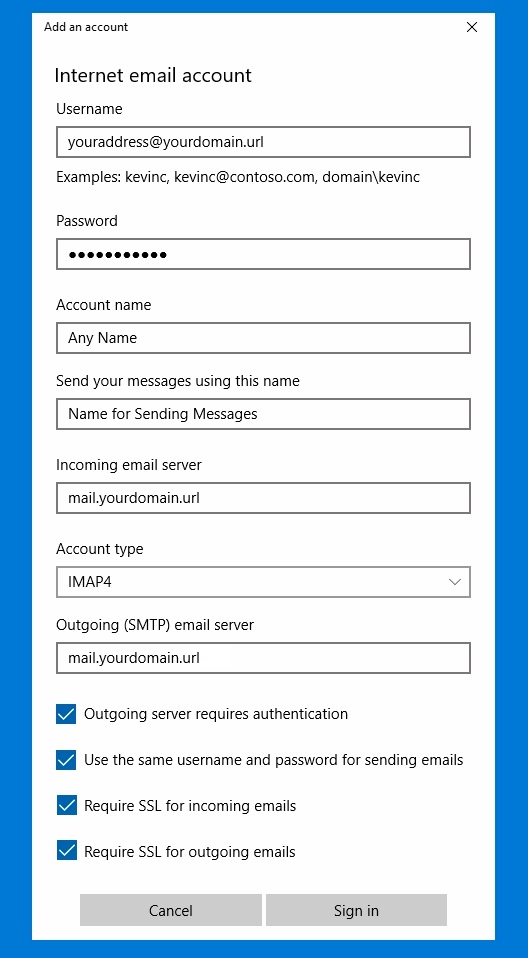
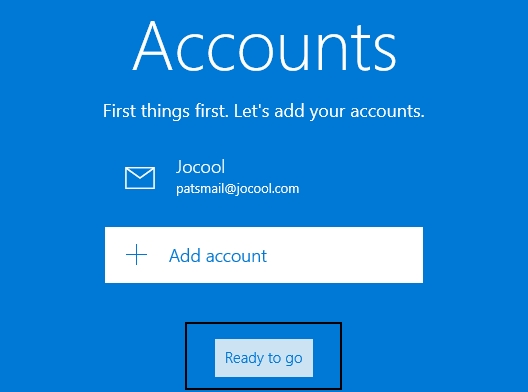
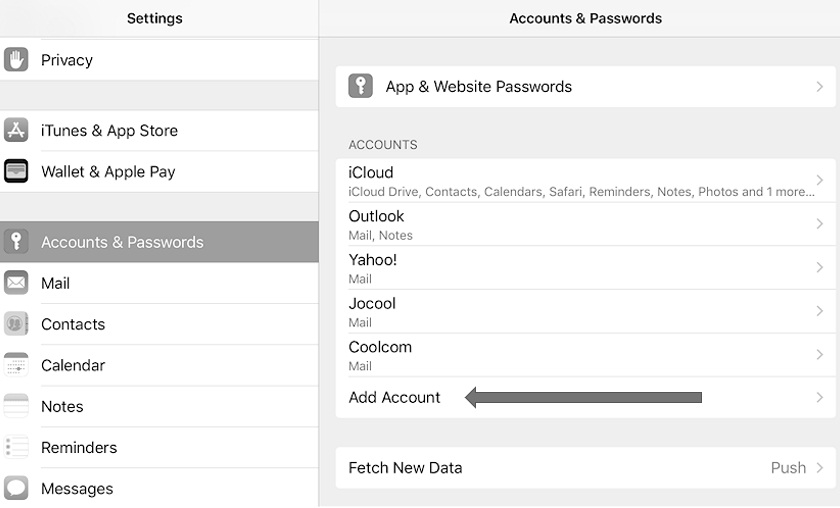
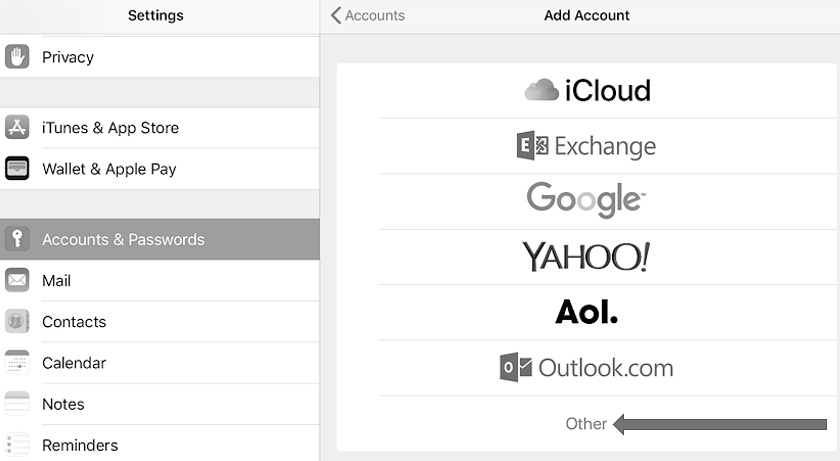
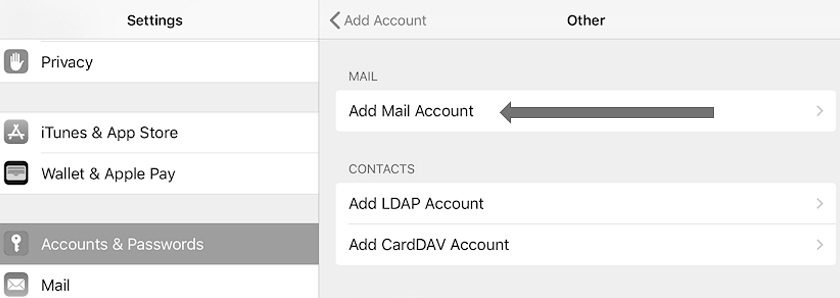
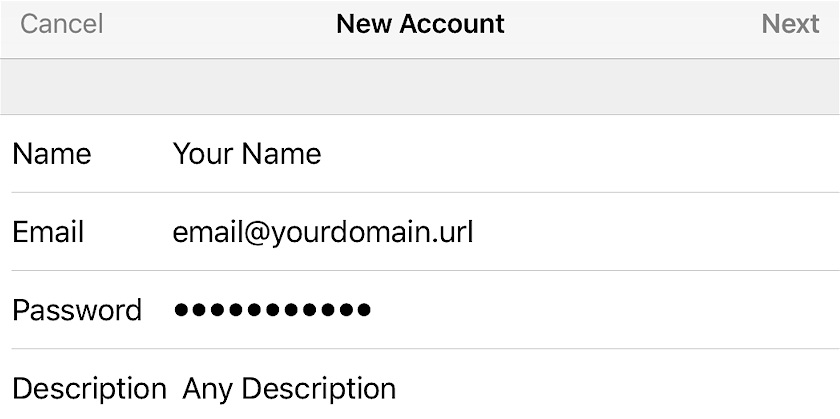
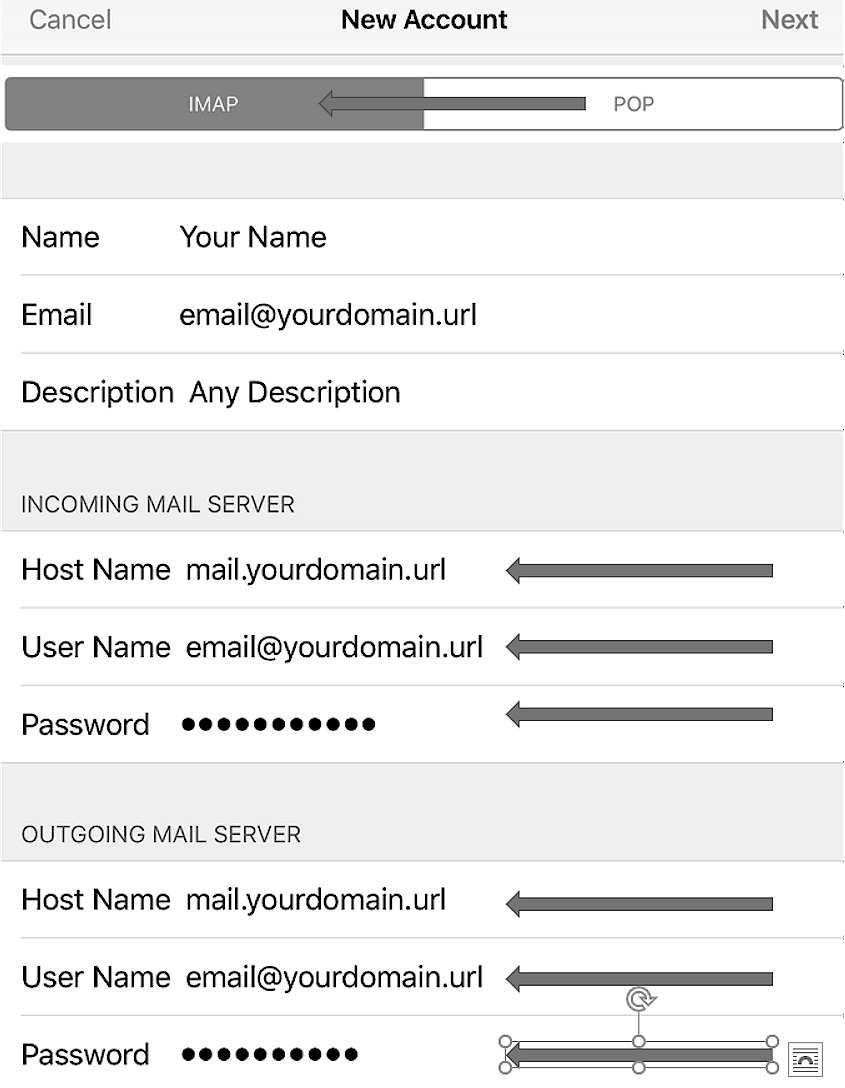
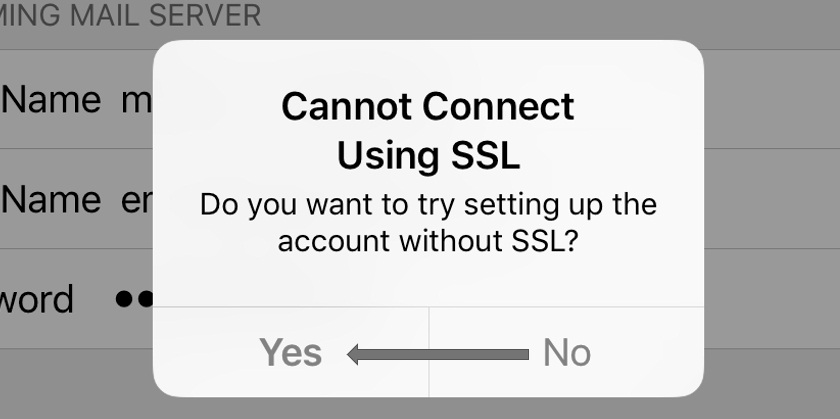
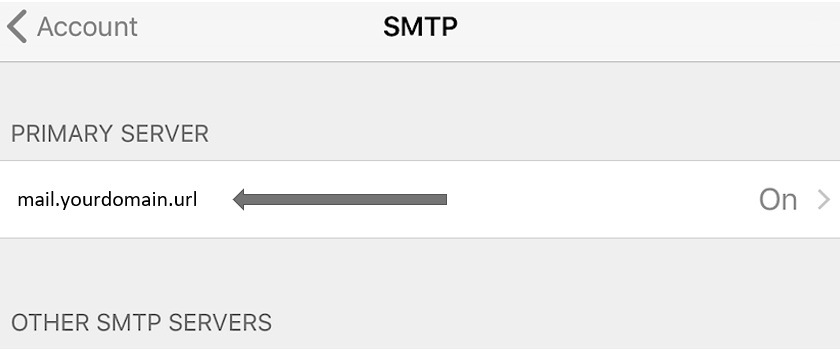
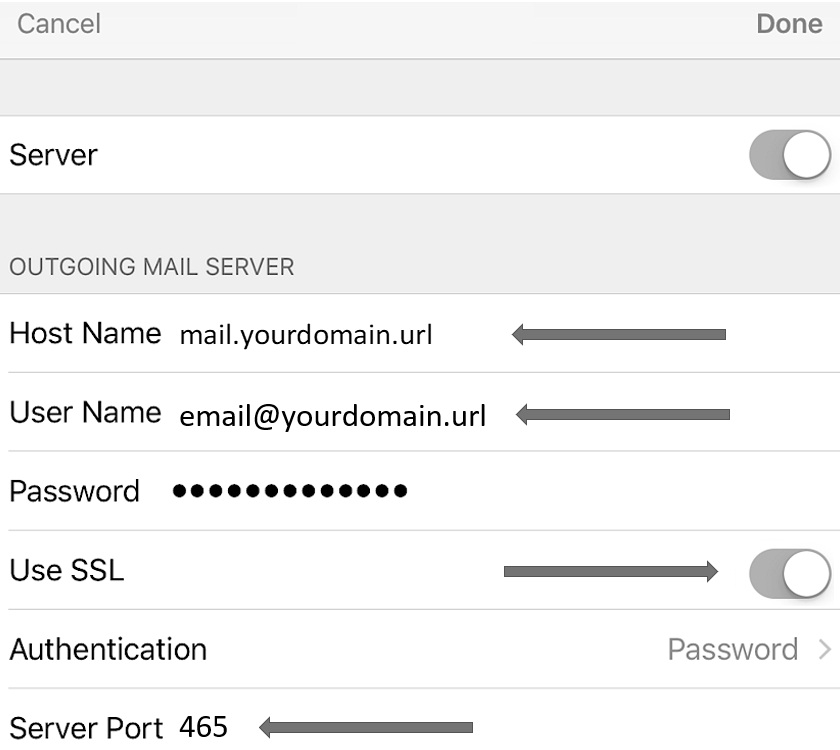
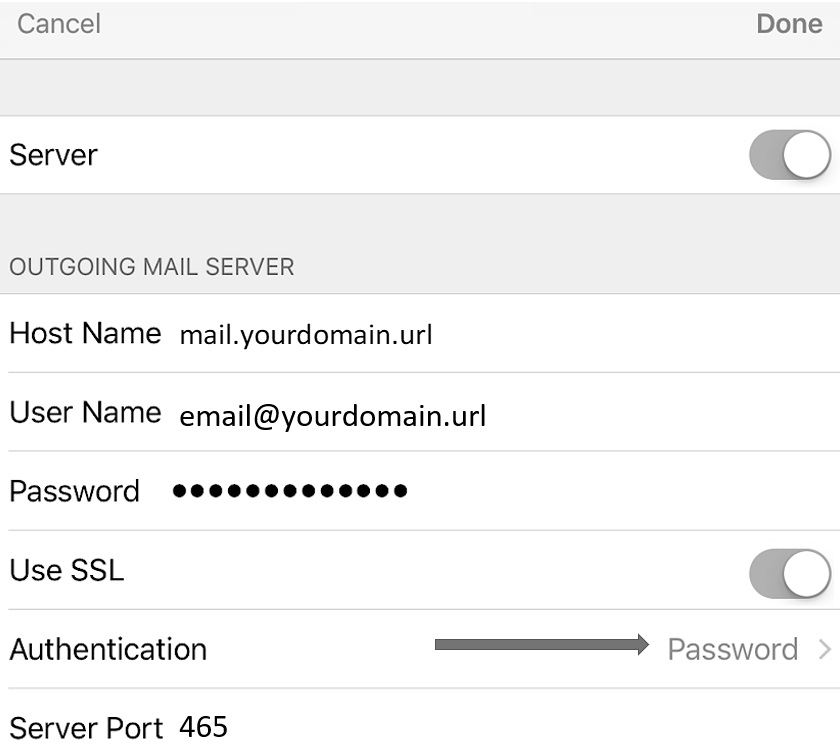
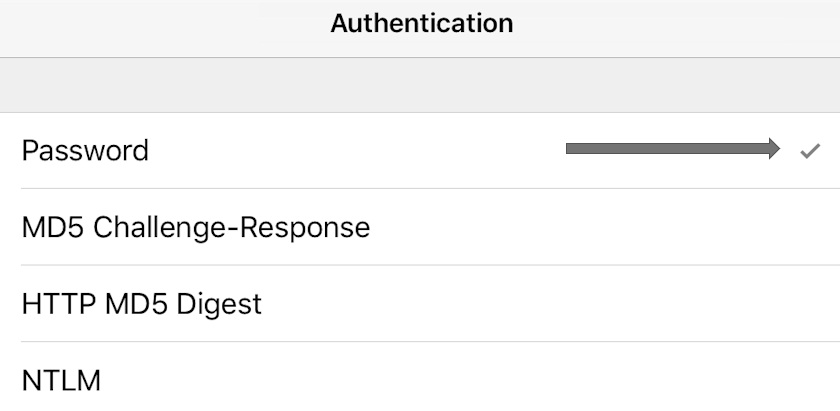
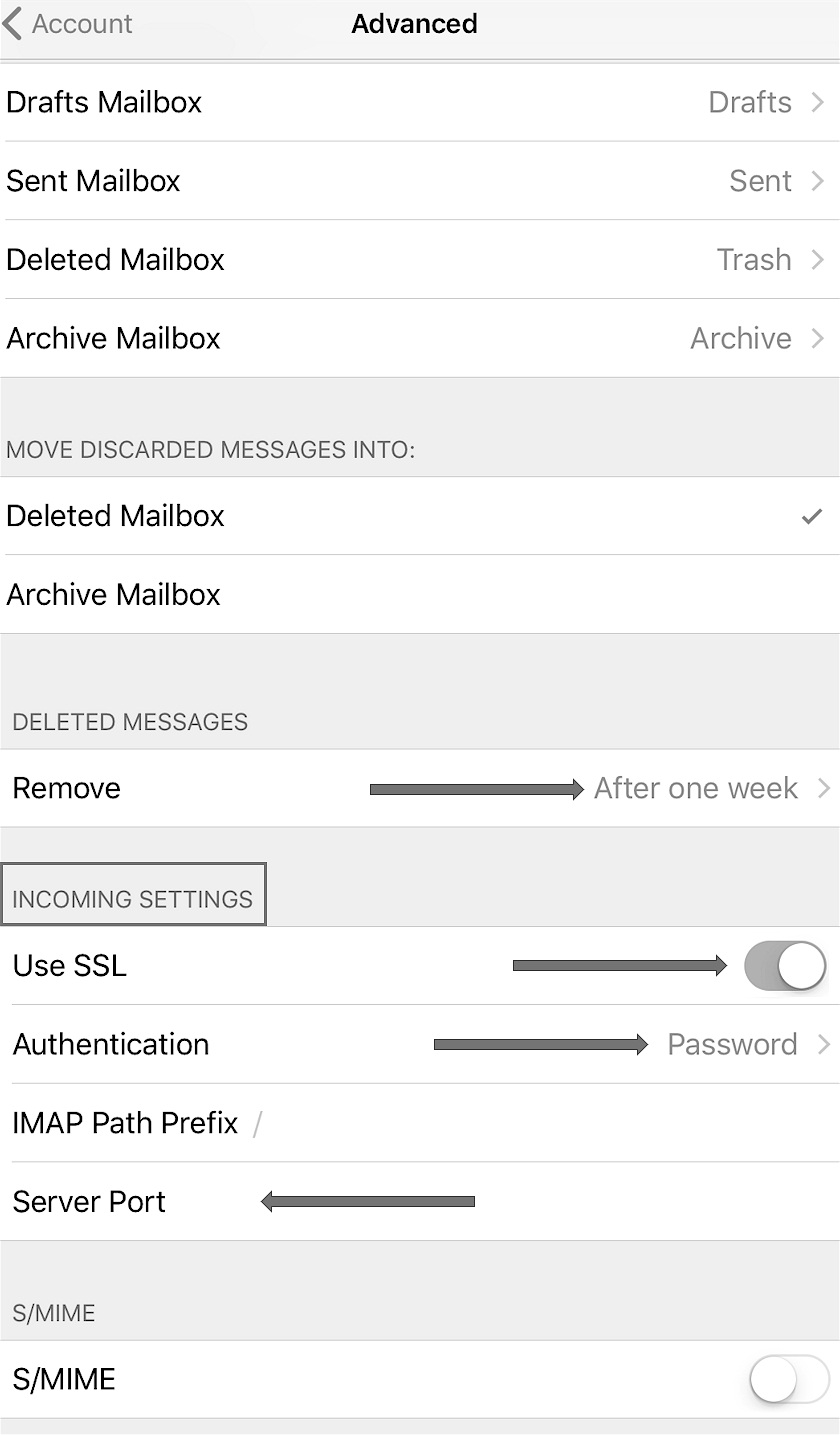
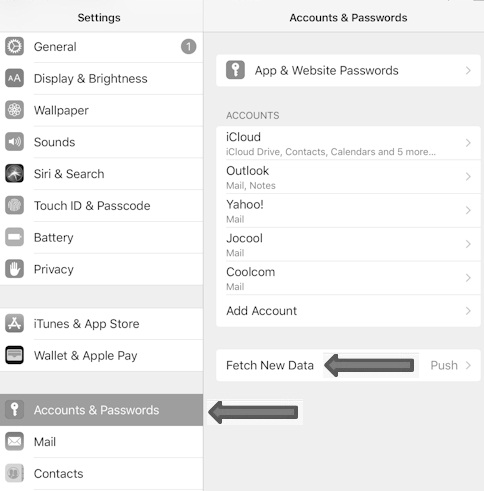
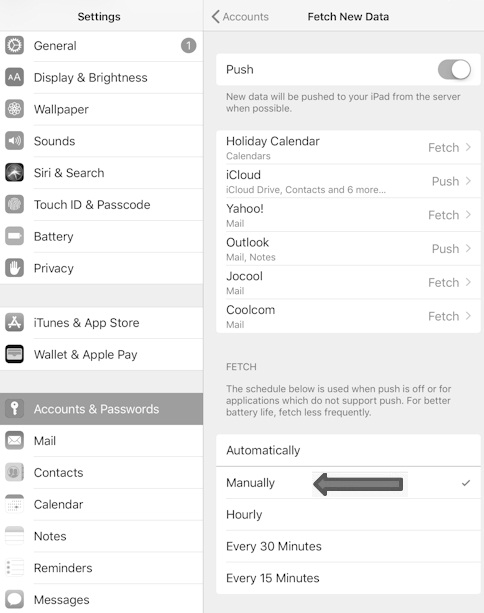
1. Using the server name or IP address instead of the mail.domain.com settings.
2. Using wrong port numbers. (in the case of 1 & 2 Check settings using the walkthroughs)
3. A cached lookup of the IP for the mail server. (the process for MAC & PC)
How to save money on storage fees
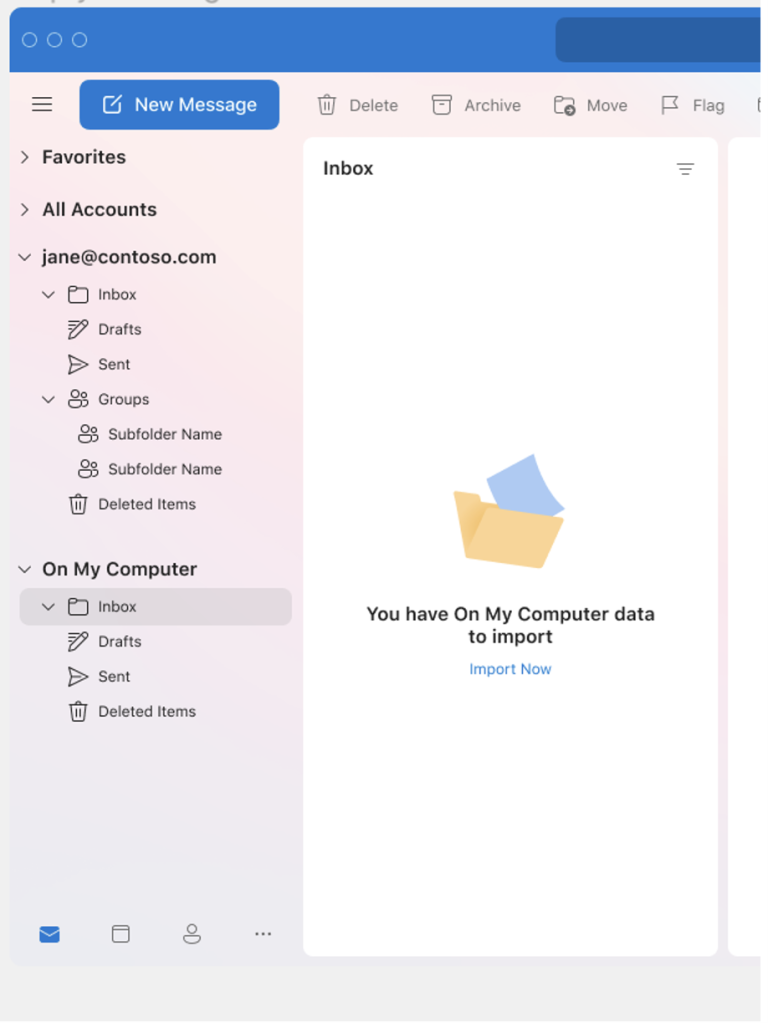
Local folders In Outlook for MAC - woohoo!
Local folders are a great way to store your emails
on your MAC instead of on the server.
Perfect solution for accounts that have a lot of stored mail but don't want to pay for added space. Back it up using your thumb drive anytime for added security and portability. With the availability of local folders in the New Outlook for Mac, you can now migrate your local data from Classic Outlook to the New Outlook.
Simply locate the On My Computer folder and click the Import Now button.
That's it! Now you can move mail from your "server" based folders over to your mac.
Brilliant!
